Preparing to open. Classes are not open yet and no venue is secured. Scratch and Robotics are planned first. We will announce the date and location once confirmed. Register interest for launch updates; this is not enrollment.
Guided Project
Guided Project
Escape from the Giant Pigeon
Reach the shelter before a huge pigeon catches you. Under the absurd premise is a precise system of coordinates, collision checks, and two possible endings.
Scratch
Coordinates
Movement
Collision
Game State
Debugging
Program
Scratch & Game Design
Project type
Guided Project
Difficulty
Beginner / Builder
Estimated time
45-70 minutes
The finished game
Reach the shelter before the pigeon reaches you.
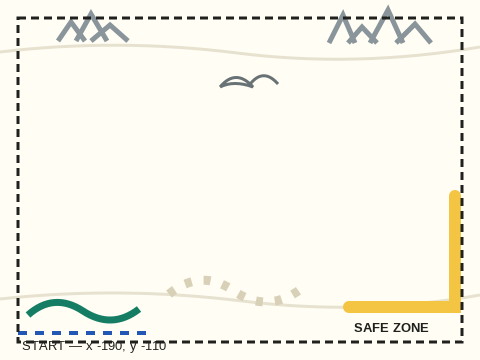
Guide the Player from the lower-left corner to the striped Safe Zone while an oversized pigeon closes in. The arrow keys change x and y, Game State keeps the two endings from colliding, and R runs the same complete reset as the green flag.
Controls
Arrow keys — move the Player on the x and y axes
Green flag — stop the old run and start from known state
R key — reset positions, variables, costumes, timer, and messages
Stage artwork: Player at lower left, Safe Zone at lower right.
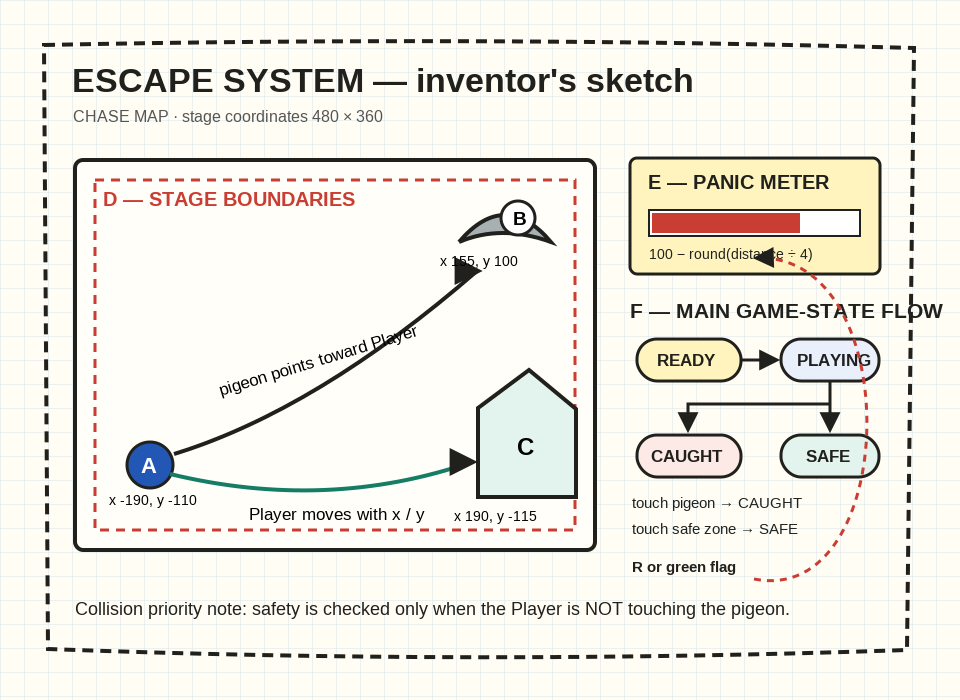
Project system sketch
Map the game before building it.
Letters A–F mark the positions, movement, pursuit, collision priority, Panic meter, and state changes.
Project artwork mapping the movement, pursuit, collision, Panic, and game-state systems.
READY restores every actor, then leaves the stage visible for one second.
PLAYING turns on movement, pursuit, the timer, Panic, and collision checks.
Pigeon contact has priority and changes Game State to CAUGHT.
Safe Zone contact changes Game State to SAFE only when the Player is not touching the pigeon.
R and the green flag both run the same reset and return the project to READY.
What you need
Scratch and a keyboard.
A browser
The Scratch editor
A keyboard
A student-drawn character or ordinary built-in Scratch assets
This project runs in the browser-based Scratch editor, so there is nothing to install. An account is optional; available saving and sharing methods depend on the classroom setup.
What is already in the starter
A backdrop and seven editable SVG costumes
Three short WAV sound effects
Named variables and visible monitors
Known positions and setup receivers
In-editor build instructions
What you still build
Arrow-key movement and boundaries
Pursuit and fair timing
Caught-first collision priority
Panic and survival displays
SAFE / CAUGHT feedback and R restart
Project downloads
Start Building
Begin with the starter, inspect the finished game, or download the editable art and sounds.
Scratch 3 project (.sb3)53.5 KB
Download Starter Project
Original art and sounds, named variables, known positions, and setup scripts. The game systems are yours to build.
The flag broadcasts Reset Game. Its receiver sets READY, restores the variables and timer, waits for each actor to reset, then switches to PLAYING after a one-second pause.
Pseudocode
ON green flag:
    ask the whole project to reset
ON Reset Game:
    set READY and restore every value
    reset every actor
    wait for a fair start
    set PLAYING
StageScript: stage-green-flag
when green flag clicked
broadcast [Reset Game v] and wait
View editable scratchblocks text
when green flag clicked
broadcast [Reset Game v] and wait
StageScript: stage-reset-game
when I receive [Reset Game v]
set [Game State v] to [READY]
stop all sounds
set [Panic v] to (0)
set [Survival Time v] to (0)
set [Pigeon Speed v] to (2)
reset timer
broadcast [Reset Actors v] and wait
wait (1) seconds
set [Game State v] to [PLAYING]
play sound [start v] until done
View editable scratchblocks text
when I receive [Reset Game v]
set [Game State v] to [READY]
stop all sounds
set [Panic v] to (0)
set [Survival Time v] to (0)
set [Pigeon Speed v] to (2)
reset timer
broadcast [Reset Actors v] and wait
wait (1) seconds
set [Game State v] to [PLAYING]
play sound [start v] until done
PlayerScript: player-reset
when I receive [Reset Actors v]
set rotation style [left-right v]
go to x: (-190) y: (-110)
switch costume to [normal v]
show
say []
View editable scratchblocks text
when I receive [Reset Actors v]
set rotation style [left-right v]
go to x: (-190) y: (-110)
switch costume to [normal v]
show
say []
Safe ZoneScript: safe-zone-reset
when I receive [Reset Actors v]
go to x: (190) y: (-115)
switch costume to [inactive v]
show
View editable scratchblocks text
when I receive [Reset Actors v]
go to x: (190) y: (-115)
switch costume to [inactive v]
show
What to test
Click the green flag after a win, after a loss, and during play. Check that the same positions and values return each time.
Common mistake
Setting PLAYING before the sprites move back lets the collision scripts read old positions.
Teacher checkpoint
Why does Reset Actors use broadcast and wait rather than an ordinary broadcast?
02
Build system
Move the player
Reads the arrow keys and changes x or y.
How it works
Movement runs only during PLAYING. Right and left change x; up and down change y. Because each key has its own check, holding two keys moves the Player diagonally.
Pseudocode
WHILE the game is playing:
    read the arrow keys
    change x for left or right
    change y for up or down
PlayerScript: player-movement
when green flag clicked
forever
    if <(Game State) = [PLAYING]> then
        if <key [right arrow v] pressed?> then
            change x by (5)
        end
        if <key [left arrow v] pressed?> then
            change x by (-5)
        end
        if <key [up arrow v] pressed?> then
            change y by (5)
        end
        if <key [down arrow v] pressed?> then
            change y by (-5)
        end
    end
end
View editable scratchblocks text
when green flag clicked
forever
    if <(Game State) = [PLAYING]> then
        if <key [right arrow v] pressed?> then
            change x by (5)
        end
        if <key [left arrow v] pressed?> then
            change x by (-5)
        end
        if <key [up arrow v] pressed?> then
            change y by (5)
        end
        if <key [down arrow v] pressed?> then
            change y by (-5)
        end
    end
end
What to test
Hold each key separately, then hold two together. Watch which coordinate changes.
Common mistake
Using change y for left/right or reversing the negative signs.
Teacher checkpoint
Ask the student to predict the new coordinate before pressing each arrow once.
03
Build system
Keep the player on stage
Keeps the whole Player visible inside the stage.
How it works
Four comparisons watch the current x and y positions. When the Player passes a limit, the script puts the matching coordinate back on the edge.
Pseudocode
FOREVER during PLAYING:
    if x passes either side, put x on the edge
    if y passes top or bottom, put y on the edge
PlayerScript: player-boundaries
when green flag clicked
forever
    if <(Game State) = [PLAYING]> then
        if <(x position) > (218)> then
            set x to (218)
        end
        if <(x position) < (-218)> then
            set x to (-218)
        end
        if <(y position) > (158)> then
            set y to (158)
        end
        if <(y position) < (-158)> then
            set y to (-158)
        end
    end
end
View editable scratchblocks text
when green flag clicked
forever
    if <(Game State) = [PLAYING]> then
        if <(x position) > (218)> then
            set x to (218)
        end
        if <(x position) < (-218)> then
            set x to (-218)
        end
        if <(y position) > (158)> then
            set y to (158)
        end
        if <(y position) < (-158)> then
            set y to (-158)
        end
    end
end
What to test
Hold every arrow key against every boundary, including two diagonal corners.
Common mistake
Checking an x boundary and accidentally setting y.
Teacher checkpoint
Why are the limits smaller than the stage edges at x -240/240 and y -180/180?
04
Build system
Start the pigeon
Returns the pigeon to its known starting position and appearance.
How it works
Reset Actors restores the pigeon's position, direction, costume, and visibility. The Stage stays in READY for one second, so the pigeon cannot begin chasing early.
Pseudocode
ON Reset Actors:
    stop any old chase appearance
    move far from the Player
    face left, show wings up, and show
Giant PigeonScript: pigeon-reset
when I receive [Reset Actors v]
set rotation style [all around v]
go to x: (155) y: (100)
point in direction (-90)
switch costume to [wings up v]
show
View editable scratchblocks text
when I receive [Reset Actors v]
set rotation style [all around v]
go to x: (155) y: (100)
point in direction (-90)
switch costume to [wings up v]
show
What to test
Move the pigeon and change its costume during a run. Restart and check that every starting property returns.
Common mistake
Resetting only the position while an ending costume or hidden state remains.
Teacher checkpoint
Before PLAYING begins, compare the two starting positions and explain why the distance is fair.
05
Build system
Chase the player
Points towards the Player and moves by Pigeon Speed.
How it works
The loop aims again after every move because the Player's position keeps changing. A short wait controls the chase speed and leaves enough time to see the wing costumes alternate.
Pseudocode
WHILE the game is PLAYING:
    point toward the Player's current position
    move by Pigeon Speed
    flap once and pause briefly
Giant PigeonScript: pigeon-chase
when green flag clicked
forever
    if <(Game State) = [PLAYING]> then
        point towards [Player v]
        move (Pigeon Speed) steps
        next costume
        wait (0.08) seconds
    end
end
View editable scratchblocks text
when green flag clicked
forever
    if <(Game State) = [PLAYING]> then
        point towards [Player v]
        move (Pigeon Speed) steps
        next costume
        wait (0.08) seconds
    end
end
What to test
Move in a large rectangle and confirm the pigeon continually corrects its direction.
Common mistake
Pointing toward the Player once before the loop instead of during every chase step.
Teacher checkpoint
Which variable changes the difficulty without changing the chase script?
06
Build system
Detect being caught
Sets CAUGHT once when the Player touches the pigeon.
How it works
The outer Game State check prevents a repeated ending. The script sets CAUGHT before broadcasting, so every other PLAYING system stops at its next check.
Pseudocode
WHILE PLAYING:
    if touching the Giant Pigeon:
        set CAUGHT first
        announce Caught
PlayerScript: player-detect-caught
when green flag clicked
forever
    if <(Game State) = [PLAYING]> then
        if <touching [Giant Pigeon v]?> then
            set [Game State v] to [CAUGHT]
            broadcast [Caught v]
        end
    end
end
View editable scratchblocks text
when green flag clicked
forever
    if <(Game State) = [PLAYING]> then
        if <touching [Giant Pigeon v]?> then
            set [Game State v] to [CAUGHT]
            broadcast [Caught v]
        end
    end
end
What to test
Let the pigeon touch the Player from several directions and confirm CAUGHT appears once.
Common mistake
Broadcasting the ending before changing state allows another detector to run as if play continues.
Teacher checkpoint
On the contact frame, which command prevents the second ending from running?
07
Build system
Detect reaching safety
Sets SAFE only when the Player reaches the shelter without touching the pigeon.
How it works
The outer not-touching-pigeon check gives CAUGHT priority when both contacts appear to happen together. Only after that check does the script test the Safe Zone.
Pseudocode
WHILE PLAYING:
    if NOT touching the pigeon:
        if touching the Safe Zone:
            set SAFE first
            announce Reached Safety
PlayerScript: player-detect-safe
when green flag clicked
forever
    if <(Game State) = [PLAYING]> then
        if <not <touching [Giant Pigeon v]?>> then
            if <touching [Safe Zone v]?> then
                set [Game State v] to [SAFE]
                broadcast [Reached Safety v]
            end
        end
    end
end
View editable scratchblocks text
when green flag clicked
forever
    if <(Game State) = [PLAYING]> then
        if <not <touching [Giant Pigeon v]?>> then
            if <touching [Safe Zone v]?> then
                set [Game State v] to [SAFE]
                broadcast [Reached Safety v]
            end
        end
    end
end
What to test
Reach the shelter cleanly, then drag the pigeon over it and test the overlap priority.
Common mistake
Testing safety without excluding pigeon contact makes the ending depend on script timing.
Teacher checkpoint
Ask the student to explain why the Safe Zone condition sits inside the pigeon condition.
08
Build system
Update the panic meter
Calculates Panic from distance and records survival time.
How it works
Panic rises as the pigeon gets closer. Two checks keep it between 0 and 100. A separate Stage script records the timer to the nearest tenth while the game is PLAYING.
Pseudocode
WHILE PLAYING:
    Panic = 100 - rounded(distance / 4)
    clamp Panic between 0 and 100
    Survival Time = timer rounded to tenths
PlayerScript: player-panic
when green flag clicked
forever
    if <(Game State) = [PLAYING]> then
        set [Panic v] to ((100) - (round ((distance to [Giant Pigeon v]) / (4))))
        if <(Panic) < (0)> then
            set [Panic v] to (0)
        end
        if <(Panic) > (100)> then
            set [Panic v] to (100)
        end
    end
end
View editable scratchblocks text
when green flag clicked
forever
    if <(Game State) = [PLAYING]> then
        set [Panic v] to ((100) - (round ((distance to [Giant Pigeon v]) / (4))))
        if <(Panic) < (0)> then
            set [Panic v] to (0)
        end
        if <(Panic) > (100)> then
            set [Panic v] to (100)
        end
    end
end
StageScript: stage-survival-time
when green flag clicked
forever
    if <(Game State) = [PLAYING]> then
        set [Survival Time v] to ((round ((timer) * (10))) / (10))
    end
end
View editable scratchblocks text
when green flag clicked
forever
    if <(Game State) = [PLAYING]> then
        set [Survival Time v] to ((round ((timer) * (10))) / (10))
    end
end
What to test
Watch Panic at the starting distance, during the chase, and on contact. Restart and check that Panic and Survival Time return to zero.
Common mistake
Dividing 100 by distance instead of subtracting scaled distance makes the meter jump unpredictably.
Teacher checkpoint
Why can Panic be approximate while the ending still uses direct touching?
09
Build system
End the game cleanly
Shows the result with a costume, sound, message, and Safe Zone change.
How it works
The detector commits the Game State before the ending receivers change the presentation. Movement and pursuit stop because their scripts only run during PLAYING.
Pseudocode
ON Caught:
    show caught costume and sound
    explain how to restart
ON Reached Safety:
    activate the shelter and play its sound
    explain how to restart
PlayerScript: player-caught-response
when I receive [Caught v]
switch costume to [caught v]
play sound [caught v] until done
say [CAUGHT! Press R to restart.]
View editable scratchblocks text
when I receive [Caught v]
switch costume to [caught v]
play sound [caught v] until done
say [CAUGHT! Press R to restart.]
PlayerScript: player-safe-response
when I receive [Reached Safety v]
say [SAFE! Press R to restart.]
View editable scratchblocks text
when I receive [Reached Safety v]
say [SAFE! Press R to restart.]
Safe ZoneScript: safe-zone-active-response
when I receive [Reached Safety v]
switch costume to [active v]
play sound [safe v] until done
View editable scratchblocks text
when I receive [Reached Safety v]
switch costume to [active v]
play sound [safe v] until done
What to test
Trigger each ending and check that no sound, costume, message, or state from the other ending appears.
Common mistake
Using stop all before displaying the result prevents ending feedback and restart scripts.
Teacher checkpoint
Which scripts stop because Game State changed, even though they contain no stop block?
10
Build system
Restart and test
Sends the R key and green flag through the same reset.
How it works
There is one Reset Game receiver, so a repair applies to both ways of restarting. R works after a win, after a loss, and during play.
Pseudocode
ON R key:
    ask for Reset Game and wait
THEN test green flag, win-restart, caught-restart, edges, overlap, and variables
StageScript: stage-r-restart
when [r v] key pressed
broadcast [Reset Game v] and wait
View editable scratchblocks text
when [r v] key pressed
broadcast [Reset Game v] and wait
What to test
Run the full checklist, including three flag clicks and an R restart after each ending.
Common mistake
Copying the reset commands under R gives the project two reset scripts that can drift apart.
Teacher checkpoint
Ask the student to demonstrate one repaired bug and the test that would catch it again.
Test checklist
Try the awkward cases.
One easy win proves very little.
□Click the green flag three times; each run starts at the same positions with READY before PLAYING.
□Win, press R, and confirm positions, variables, timer, costumes, visibility, and speech reset.
□Get caught, press R, and confirm the Player returns to the normal costume.
□Hold each arrow key at every stage edge; the Player remains between x -218/218 and y -158/158.
□Confirm the pigeon starts at x 155, y 100 while the Player starts at x -190, y -110.
□Enter the Safe Zone without pigeon contact; the state becomes SAFE exactly once.
□Force an overlap near the Safe Zone; pigeon contact produces CAUGHT, never both endings.
□Change each visible variable, restart, and confirm Game State, Panic, Survival Time, and Pigeon Speed reset.
□Hide or change a sprite costume in the editor, then restart; every actor becomes visible in its initial costume.
Debugging guide
The Player travels off screen
Check all four boundary comparisons. The x rules must set x, and the y rules must set y.
The pigeon catches the Player immediately
Check both reset positions, then confirm that pursuit runs only while Game State equals PLAYING.
SAFE and CAUGHT seem to happen together
Keep the Safe Zone check inside the not-touching-pigeon condition. Set Game State before broadcasting the ending.
R leaves an old message or costume
Check every Reset Actors receiver. It must restore costume, visibility, speech, and position.
Panic rises in the wrong direction
The formula subtracts scaled distance from 100. Two later checks keep the result between 0 and 100.
Challenges
Change the game. Keep the reset working.
BUILDER CHALLENGE
Make the chase fair at a new speed.
Change Pigeon Speed to 3 and test three routes. Adjust one starting coordinate until a careful player can still win.
INVENTOR CHALLENGE
Give Panic a second influence.
Add sandwich crumbs that reduce Panic without changing Game State. Explain how each crumb can trigger only once.
BOSS LEVEL
Build a second stateful map.
Create a second original backdrop with a new Safe Zone. Reset the stage number, actor positions, and collision rules without copying the whole game.
What to demonstrate
Show the code making a decision.
Explain one coordinate change, one state transition, one edge-case test, and one improvement you made.
A known start
Working x/y controls
A win
A loss
One bug that was fixed
One personal modification
Change the look
Make the artwork yours.
Every costume and sound can be replaced. Keep the sprite names and costume centres aligned with the code, then make the chase look and sound like your own game.
Scratch is a project of the Scratch Foundation. School of Code is an independent educational project and is not affiliated with or endorsed by the Scratch Foundation.